Google Chrome / Mozilla Firefox / Microsoft Edge 79 or later(Except Internet Explorer mode)
Mac
Safari / Mozilla Firefox
iOS
Safari
Android
Google Chrome
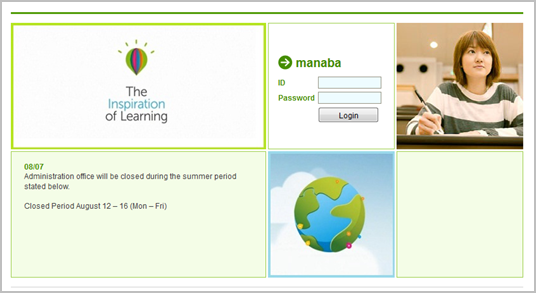
Login page
Recommended OS versions are based on the supports by Google, Apple, and Microsoft. * The new OS version will be added to the recommended OS about two months after it is released.
Recommended browsers are based on the latest edition of the Recommended OS.
You can use some functions on Old smartphone-optimized screens.
Please enable Cookies and JavaScript on your browser.
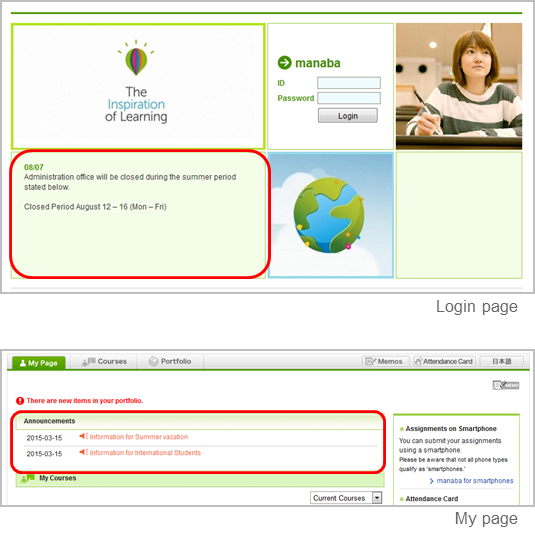
Announcements from Administration
There are announcements from the system administraion in the Login page and the My page. Please don’t miss it.
If your university use the unified authentication system, the school’s private login page will be displayed.
Change settings
Once you log into manaba, please configure the following settings from the Settings menu.
Reminder settings
You can receive reminders by email whenever new announcements are made or new posts are added.
Reminders
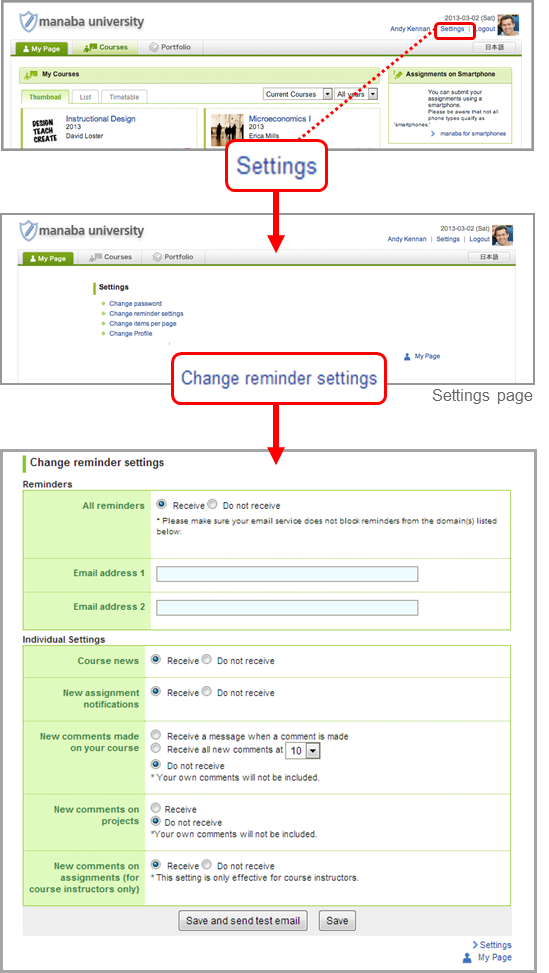
Click Settings in the upper right corner and select Change reminder settings.
Select Receive or Do not receive.
Enter in the Email address 1 your PC Email address that you want reminders to be sent to.
Enter in the Email address 2 your cellphone Email address that you want reminders to be sent to.
Individual Settings
Select Receive or Do not receive a message whenever course news is posted.
Select Receive or Do not receive a message when a new assignment is published.
You may choose from one of three options when a new comment is posted on a thread:
Receive a message when a comment is made.
Receive all new comments at a certain time of a day. (→ Select a preferred time from the dropdown menu.)
Do not receive a message
Your own comments will not be sent as reminders.
Select Receive or Do not receive a message when a project is published. This reminder is only sent to the course members who belong to the team.
Select Receive or Do not receive a message when a new comment is made in a thread of your project
Click Save and send test email and confirm reminders are sent to the email address you registered.
You will not receive messages if you choose Do not receive in the Reminders menu, even if you choose Receive in Individual Settings.
Profile settings
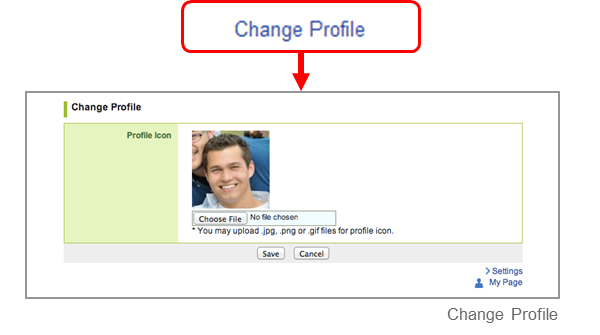
Click Settings on the upper right corner, and select Change Profile.
Upload an image of your choice.
The image you upload will be displayed beside your comments in a thread so that the course members will know whose comment it is.
Memos
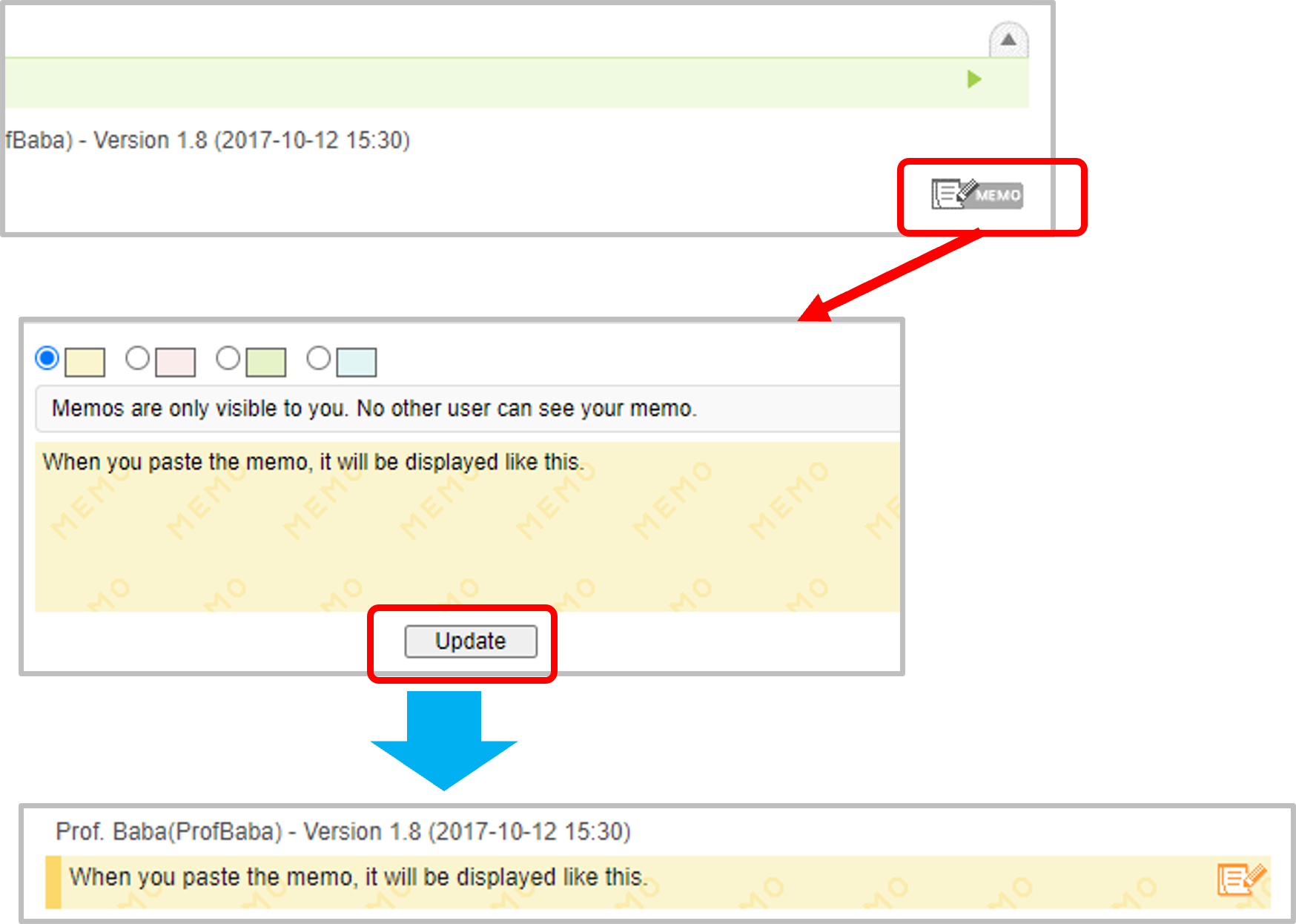
In forums, collections and other parts of manaba, the [Memo] button will appear. By clicking the button, you can write a memo.
A memo is only visible to you; other users will not be able to view your memos.
Add Memos
After clicking the Memo button, a new window will open.
Write the memo, and then click the Update button.
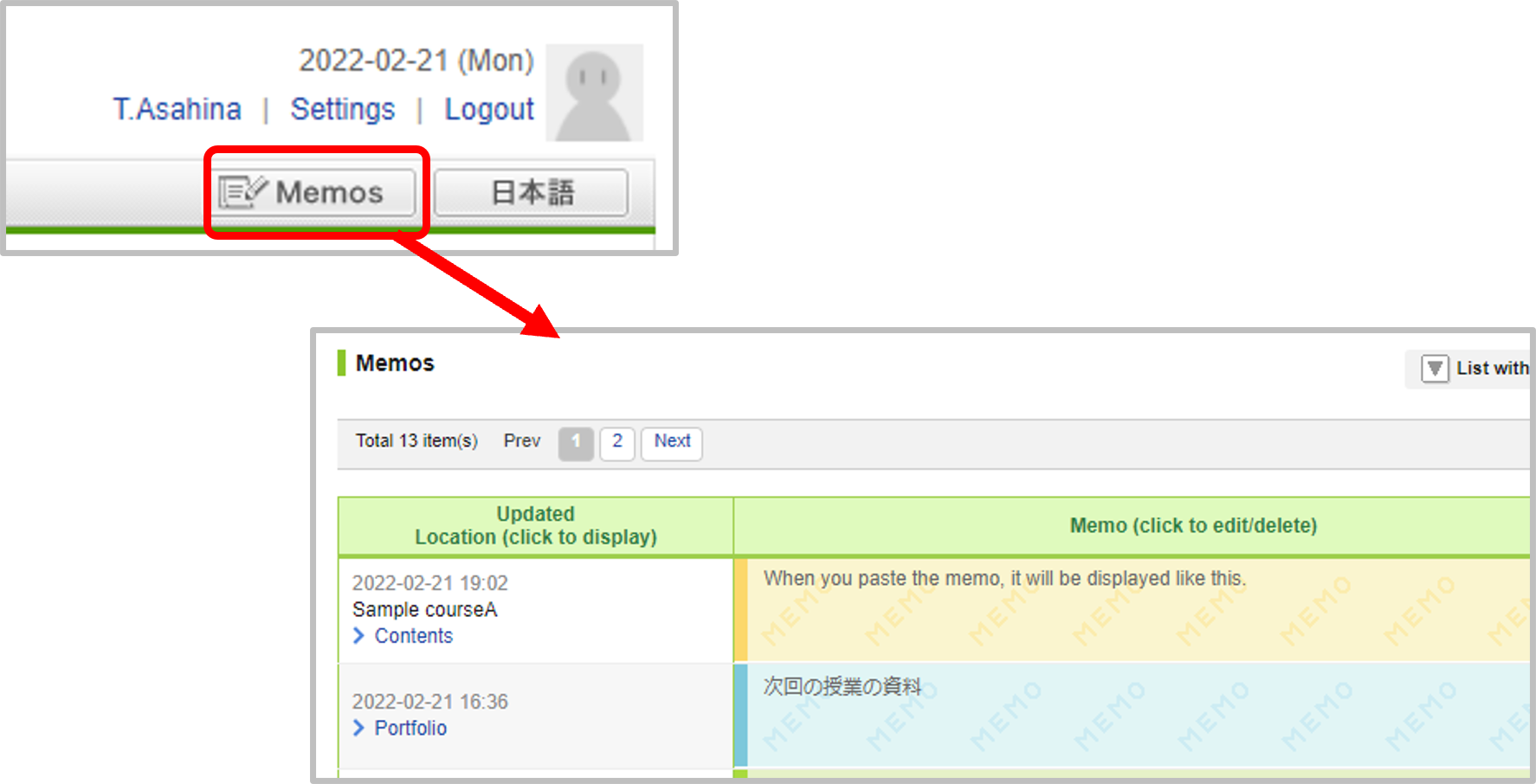
You can also display the written memo list by clicking [Memo] button at the top right of My Page. In the list ,there is link to the location of the memo.
What is a course?
A course in manaba is a space reserved for each class where you can view the announcements made by instructors, submit assignments (Tests and Assignments) or have discussions.
View your courses
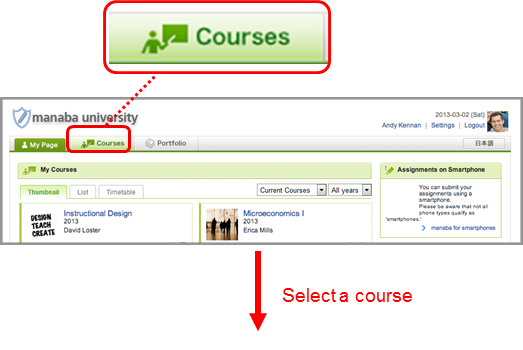
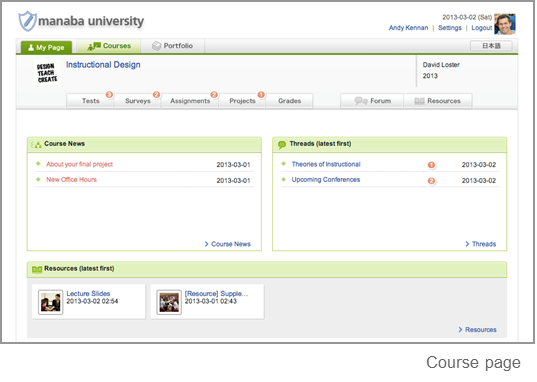
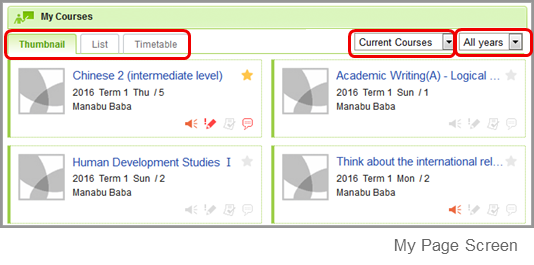
In order to view a list of courses you have been registered for, click Courses at the top of the screen. Click the course title and the main page of the course will be displayed.
Four icons in each course indicate the latest status of the course (icons will turn red if there is a new action).
There is unread course news.
There are unsubmitted assignments or tests.
Grades have been distributed.
There are unread comments on the Forum.
Number of unsubmitted tests or assignments will be displayed.
Click on the course name to go back to the course top page.
Change course display format
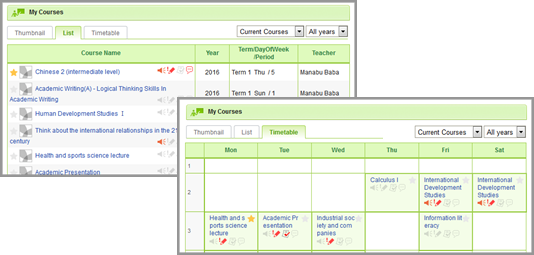
Display can be changed according to course status, course year and format.
[Current Courses ]・・・Courses that can be used currently. You can post in the forum and submit assignments. [Past Courses]・・・Courses used in the past. You can only view the forum and submitted assignments. [Upcoming Courses]・・・Courses that will start in the future. Students cannot access the courses. [All Courses]・・・All courses above are displayed.
"Timetable format" do not always correspond to your actual timetable in your school. For example, there are cases where the same classes which are held on multiple days of the week are grouped together.
If you want to display the particular course at the top of the list, click the star icon on the course.
View course news
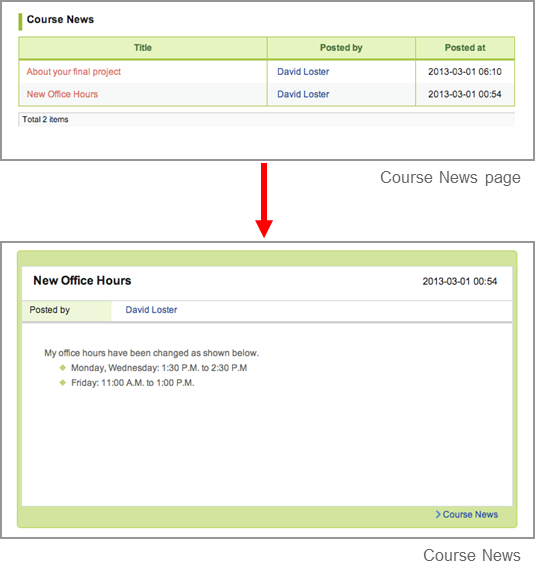
News published by course instructors can be viewed in the course news section. Click Course News and view new announcements posted in your course.
Unread course news titles are shown in orange and read course news titles are shown in blue.
An orange line appears to the left of the first course news frame you view.
The orange line will remain faded for the first hour after it is displayed. After the hour is up, the orange line will disappear completely.
Check for unsubmitted assignments
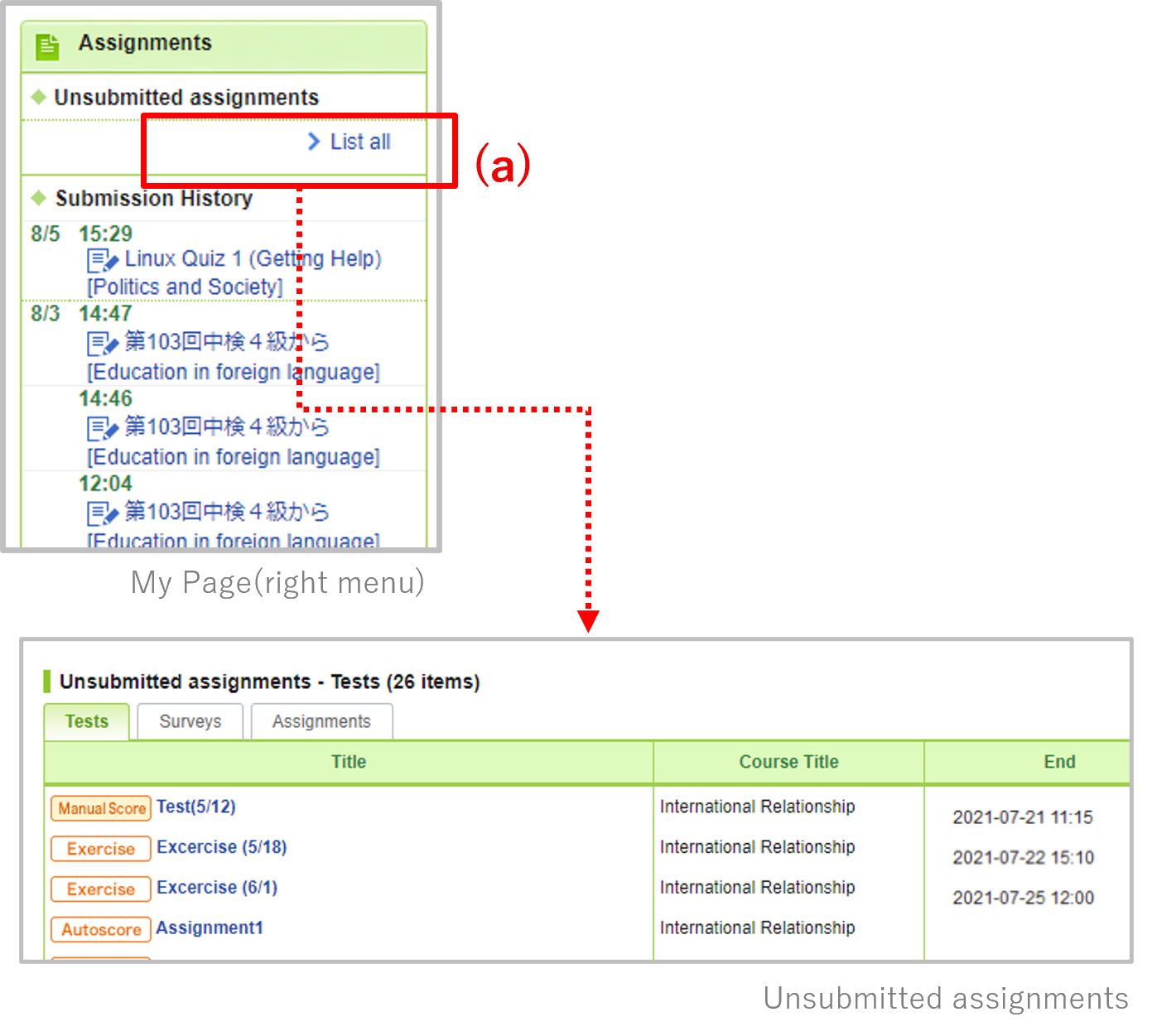
To see the details, click on the "List all(a)" link under "Unsubmitted assignments" on the right side of My Page.
The following assignments will appear in the list
Tests (Autoscore, Manual Score, Exercise)
Surveys
Assignments
* Projects will not appear in the list unless
the Library option has been released to your manaba.
*The display may differ depending on the released options.
View Submission History
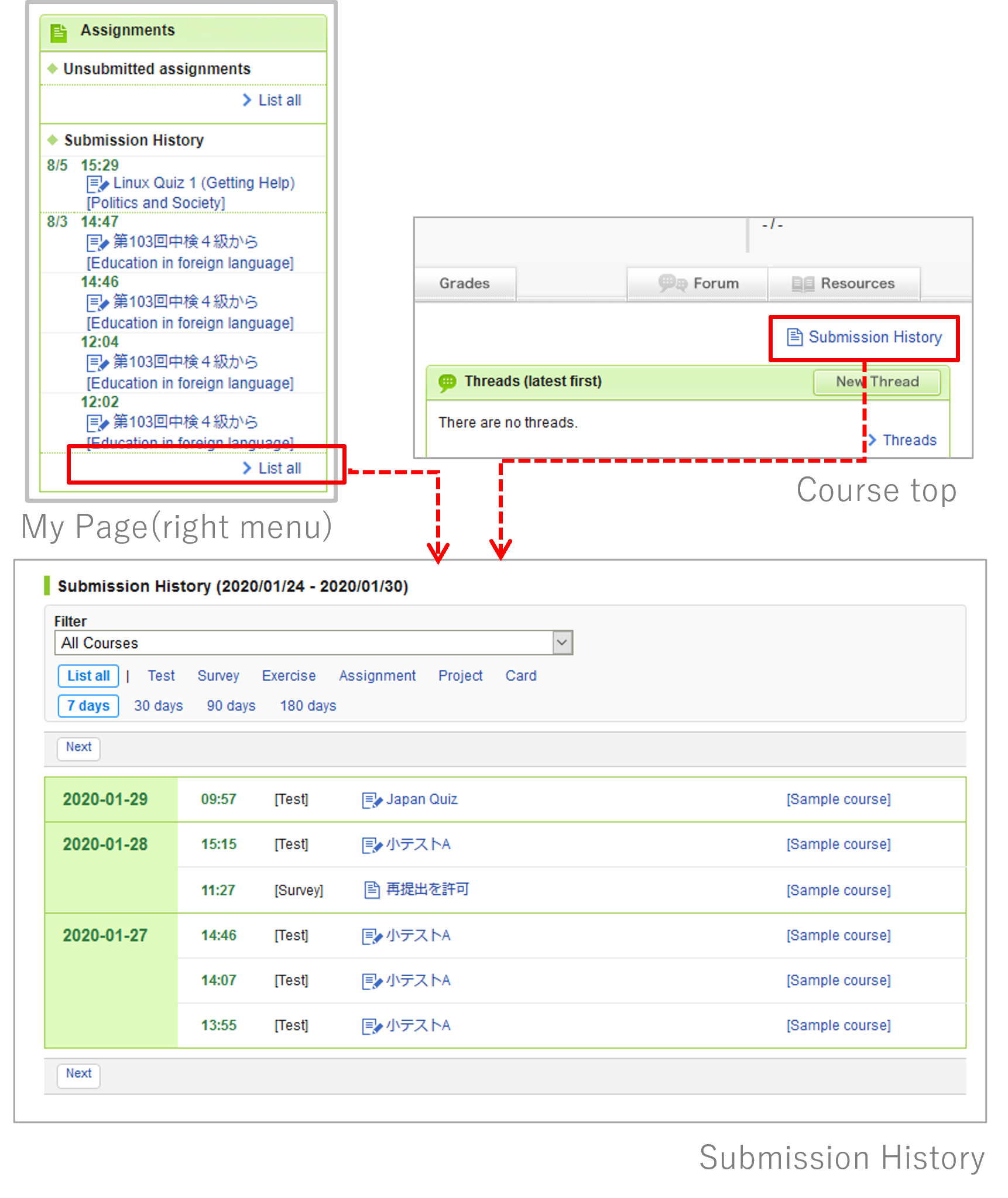
You can record the submission date and time of the assignments submitted in the course and check them in a list.
You can access Submission History from My Page or Course top page.
* The records (up to 5) submitted in the last week are displayed on My Page.
Tests
Types of tests
There are 3 types of tests on manaba.
Autoscore test
Answers will be scored automatically after submission.
Manual score test
Answers to this test will be scored by your instructors manually after submission.
Exercise
This is a type of test which you may repeatedly answer in order to practice. Unlike Autoscore tests, the grades will not be registered automatically
Take a test
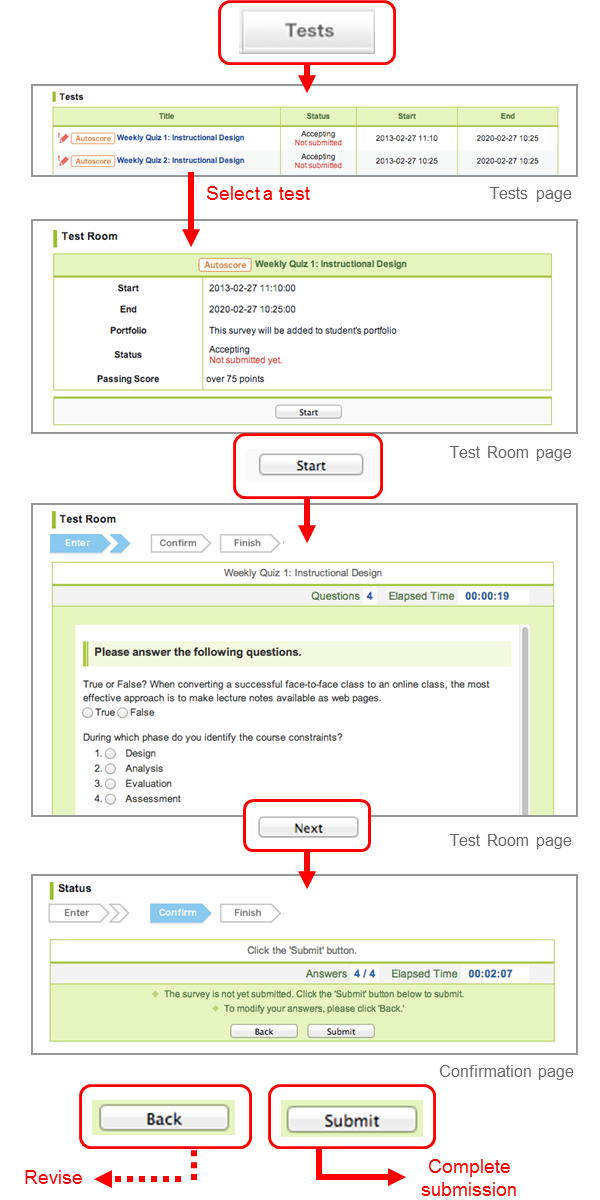
In Tests page, select a test you would like to take.
Check that the test is open for submission. Click Start to enter the test room.
Enter your answers to the questions.
Check your answers and click Next after you have answered all the questions. ※If there are plural pages, Click Next to display the next page. In the final page, you will be able to click Confirm.
Click Submit and send your answers. If you need to check or fix your answers, click Back.
Make sure to check your answers before you submit.
Please be sure to click the submit button to confirm the submission. If you do not click submit button, the assignment will not become "submitted".
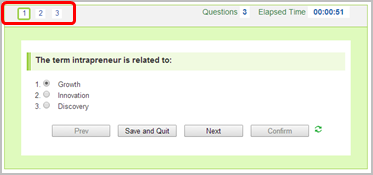
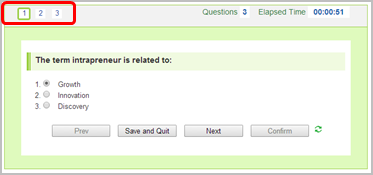
It is also possible to display the preferred page by clicking the navigation buttons above the question. When using a smartphone device, use the pull-down menu to move between the test pages.
Tests with prerequisites
A test with prerequisites requires you to attain a certain number of points in another test before you can take it.
Display the correct answers after exercises are submitted
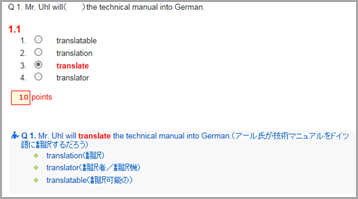
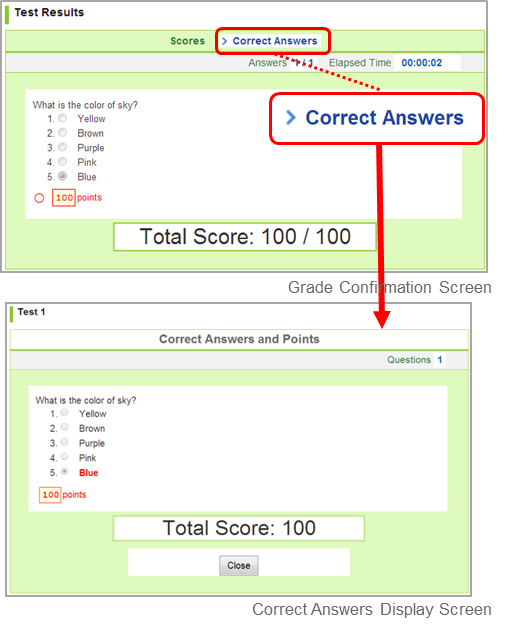
It is now possible for you to check the correct answers in the Results page after submitting exercises. Please use it for self-study. The correct answers can be checked by the following procedure.
Click the title of the exercise you want to check in the Tests page.
Click the Scores link of the past answer you want to check.
Click Correct Answers to display the correct answers.
Correct answers can only be checked for exercises that have been set to “Show correct answers” when your instructor created those exercises.
When there is more than one correct answer to Text line question, answers are separated with semicolon (;). If the question is using image, either Tokyo or Tokyo-to is correct."
The explanation of the questions can be checked with the answers when your instructor set them.
Surveys
Answer a survey
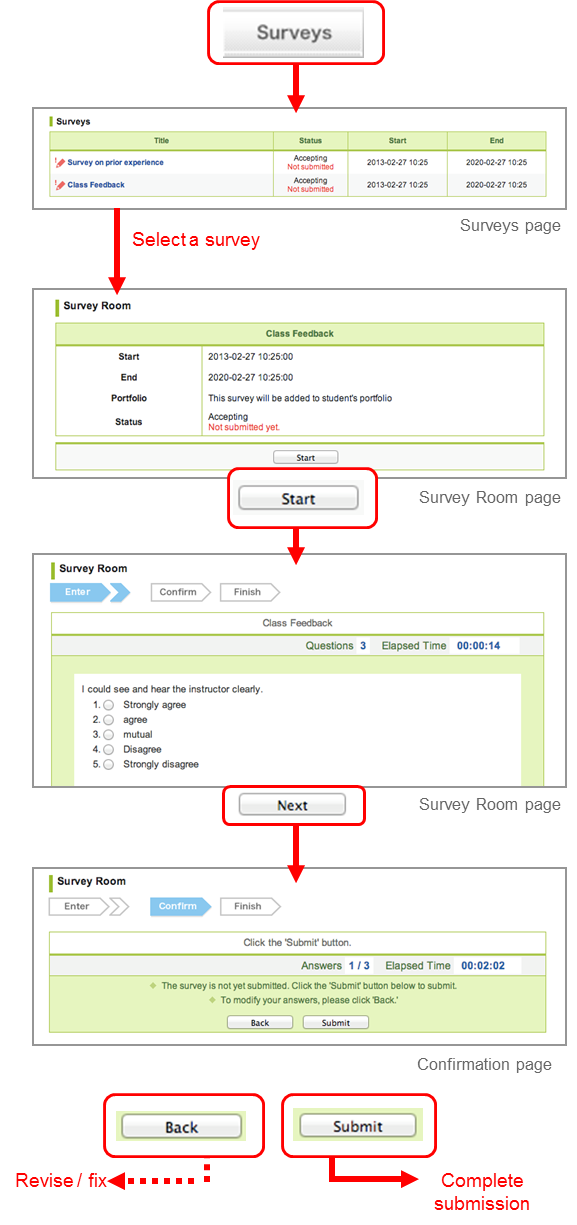
In the Surveys page, select a survey you would like to answer.
Click Start.
Enter your answers to the questions.
Check your answers and click Next after you have answered all the questions. ※If there are plural pages, Click Next to display the next page. In the final page, you will be able to click Confirm.
Click Submit and send your answers. If you need to check or fix your answers, click Back.
Make sure to check your answers before you submit.
Please be sure to click the submit button to confirm the submission. If you do not click submit button, the assignment will not become "submitted".
It is also possible to display the preferred page by clicking the navigation buttons above the question. When using a smartphone device, use the pull-down menu to move between the test pages.
Re-submission of survey
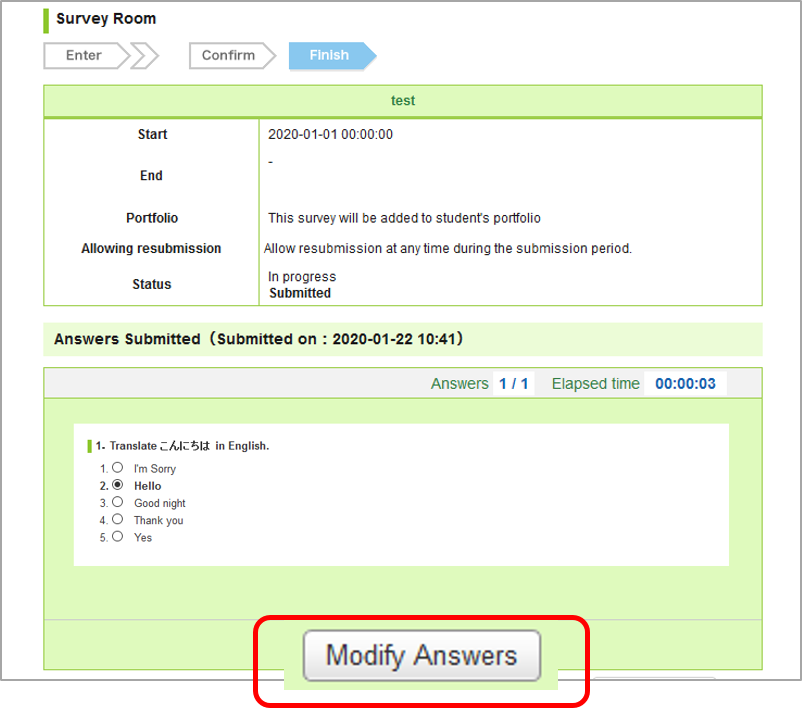
Depending on the survey, it is possible to resubmit the assignment after your initial submission, providing this is done within the survey acceptance period. Following the steps listed below will return the survey to its status prior to submission. Revise the content of the survey and resubmit it.
On the Surveys page, select the survey you wish to resubmit. The Survey Room page will be displayed.
Click the Modify Answers button, and then click OK to return the survey to its status prior to submission.
After you have revised the survey, click the Confirm button.
The submission is not complete at this point.
Check the content, and then click the Submit button to complete the submission process. Click Back if revision is needed.
No reminder email will be sent.
Assignments
Submit an assignment
There are two types of assignments on manaba.
Browser-based assignments
An assignment submitted by entering text into manaba.
File-based assignments
An assignment submitted as a file such as a Word document.
Browser-based assignments
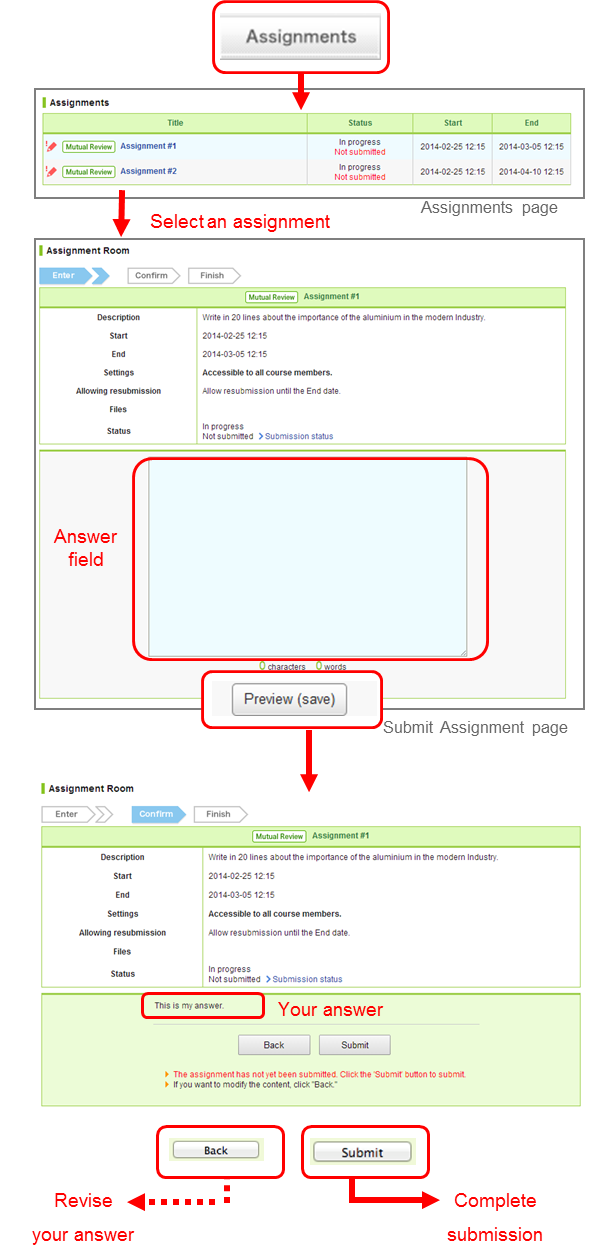
In Assignments page, select an assignment you would like to answer.
View the details of the assignment and enter your answers.
Check your answers and click Preview(save) after you have answered all the questions.
The assignment has not been submitted to the instructor yet.
Check your answers. If there are no revisions to make, click Submit to submit your answers. If you need to revise your answers, click Back.
Please be sure to click the submit button to confirm the submission. If you do not click submit button, the assignment will not become "submitted".
File-based assignments
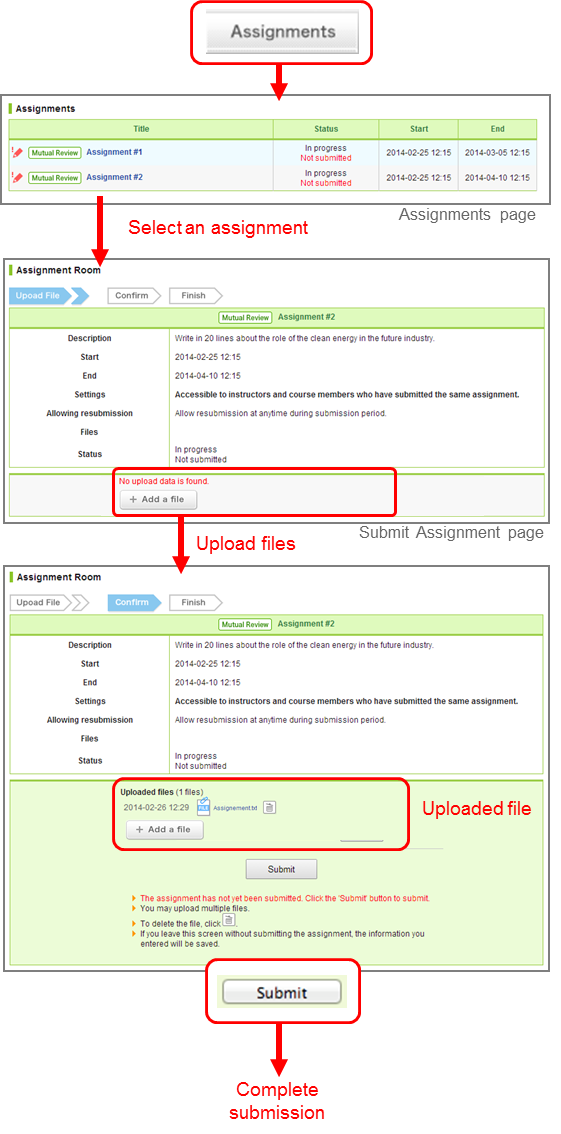
In Assignments page, select an assignment you would like to answer.
View the details of the assignment and put together your response.
click Add a file to locate the file and upload the file into manaba.
The assignment has not been submitted to the instructor yet.
To add more files, repeat 3.
If there are no mistakes, click Submit to submit your files.
Please be sure to click the submit button to confirm the submission. If you do not click submit button, the assignment will not become "submitted".
Re-submission of assignment
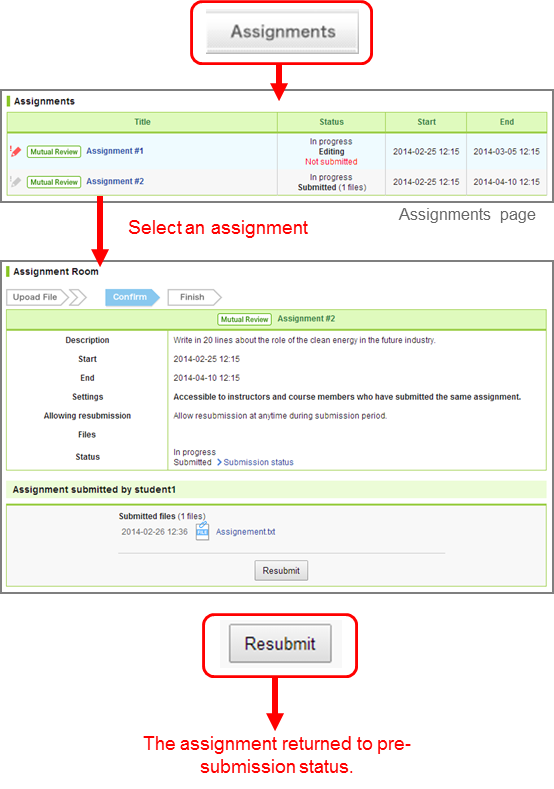
Depending on the assignment, it is possible to resubmit the assignment after your initial submission, providing this is done within the assignment acceptance period. Following the steps listed below will return the assignment to its status prior to submission. Revise the content of the assignment and resubmit it.
On the Assignment page, select the assignment you wish to resubmit. The Assignment Room page will be displayed.
Click the Resubmit button.
After you have revised the assignment (or re-uploaded the file), click the Send button.
The submission is not complete at this point.
Check the content, and then click “Submit” to complete the submission process. Click Back if revision is needed.
Projects
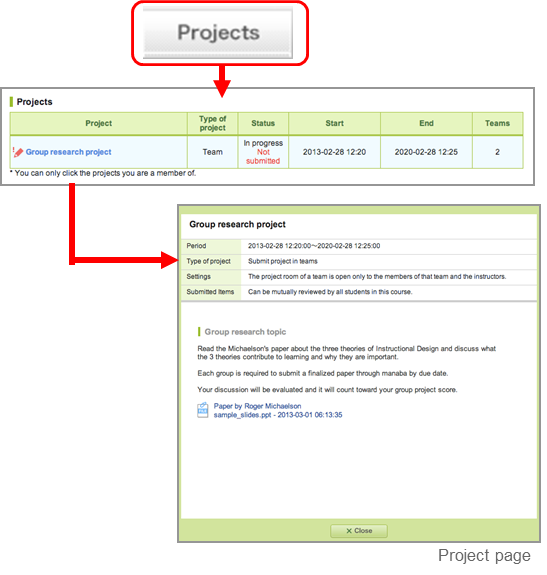
In projects, your instructor can provide a dedicated space for your team to interact so that you can discuss a topic and eventually submit your project. A forum and a window for submitting project are available for every team. The submitted assignments can be mutually reviewed depending on the settings.
View a project assignment
Click the title of the project and view the description of the project and assignment.
Forum and project submission
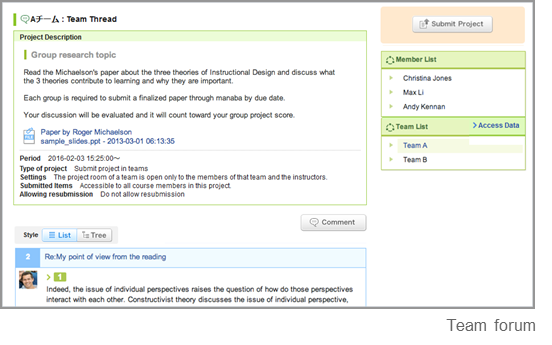
Select a project in Team Progress page.
Then click the team name.
Depending on the setting your instructor made, you may be able to click only the team you belong to.
Discuss in the team forum
You may post comments in the team forum in the same procedure as for posting comments on a thread. (→please refer to “Add a comment” )
After the end date of the project, you will not be able to make comments in the team threads. (You may still view the comments.)
Submit a project
The assignment will be submitted from the forum of each team. There are two ways to submit a project:
Submit project in teams
If the submission format is set to “Submit project as a team,” one team member out of the group will submit the assignment. The submitted project will be added to the portfolios of all team members.
Submit a project individually
If the submission format is set to “Submit project individually,” each team member will submit their own files.
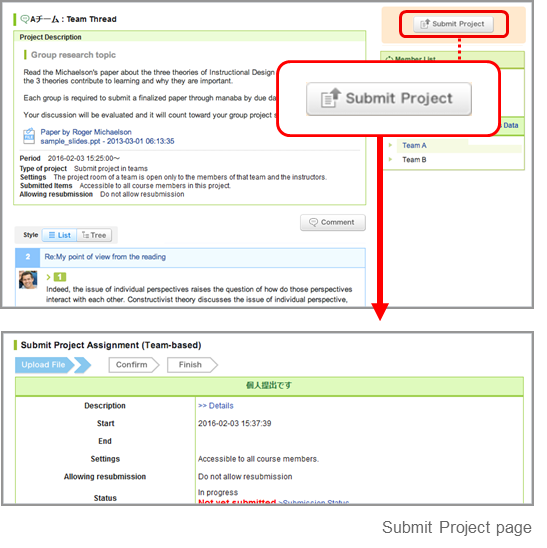
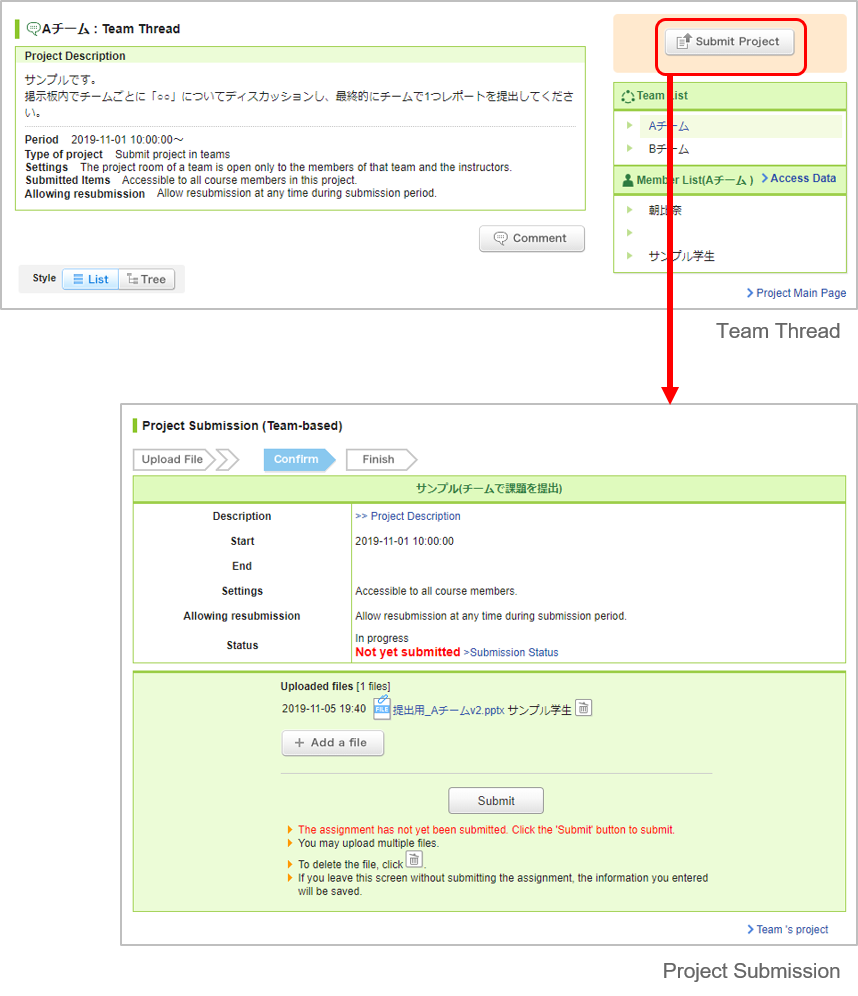
Click Submit project in your team forum.
click Add a file to locate the file and upload the file into manaba.
If there are no mistakes, click Submit to submit your files.
You may submit files up to the end date set up by the instructor.
After the end date, you will not be able to make comments in the team threads. (You may still view the comments.)
Re-submission of project
Depending on the project, it is possible to resubmit the project after your initial submission, providing this is done within the project acceptance period.
Following the steps listed below will return the project to its status prior to submission. Re-uploaded the file into the project and resubmit it.
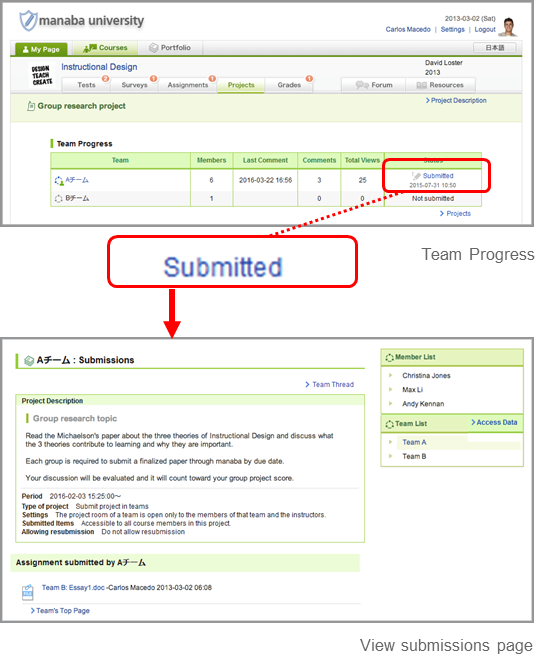
On the project page, click the project title you wish to resubmit and the Team Progress page will be displayed.
Click "Submitted" and Submissions page will be displayed.
Click the Resubmit button, and then click OK to return the project to its status prior to submission.
If you cancel the submission, a reminder email will be sent to the following users.
Team submission: You and your team members and the instructor.
Individual submission: You and the instructor.
Click Submit Project button at the top right of the screen to display the project submission page.
Re-uploaded the file into the project and then click Submit button to complete the submission process.
Mutual review of submissions
Once you submit assignments, view the submission in view submissions page. If the instructor turned on mutual review for the project, you can view submissions of other teams or students. Feel free to comment on the submissions other students or teams have posted.
Grades
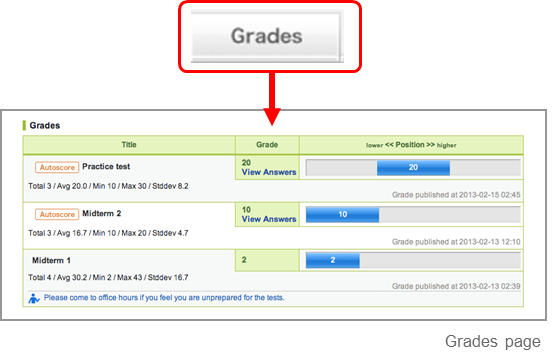
In Grades page, you may view the scores of tests and assignments you have submitted.
View your grades
Click Grades and view scores of the tests and assignments you answered.
You can also view your position among all the course members.
Course instructors decide whether or not to publish scores of assignments. Only the grades of assignments which course instructors choose to publish will display.
Forum
Every course has a forum. The forum can be used for communication between instructors and students, and between fellow students.
Add a comment
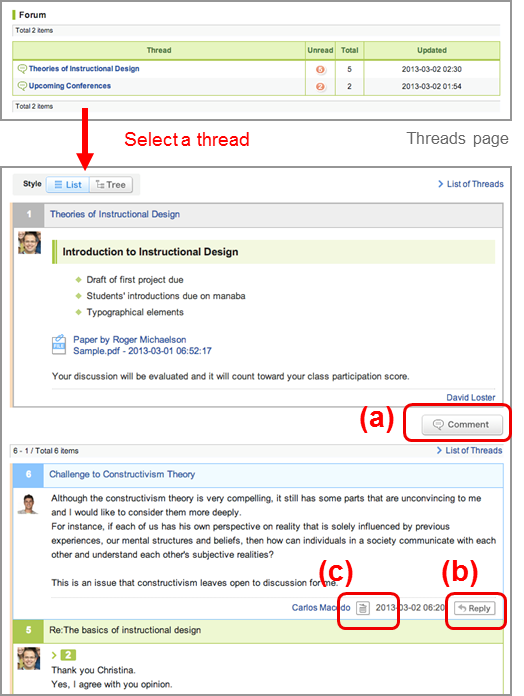
Select a thread in the Forum and click Comment (a).
Enter the title and text.
Click Reply (b) to reply to a specific comment. The reply button is only available in the forum.
Click Post and your comment will be added to the thread. * The other course members receive reminders by email if they set Receive in the following reminder on the Individual Settings. “New comments made on your course”
Delete a comment
Comments can be deleted by their author and the instructor. Click (c) to delete your comment. Once you delete a comment, it can not be recovered.
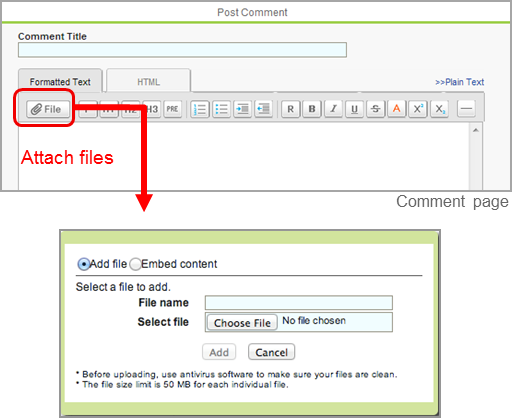
Add files to your comment
You may add files to your comment, including images, video files and word files.
Uploading videos or images from your computer
Click File button.
Enter the title of the file (optional).
Locate the file of your choice and click Add file to upload the file into manaba.
Click Add and complete the process.
Files supported
Image files (GIF, JPG, PNG files, etc.)
Video files (MP4, m4v, WMV, MOV, MPEG files, etc.)
Audio files (mp3, m4a files, etc.)
You may need to install one or more video players in order to play the uploaded video files. Depending on the browser, you cannot play the file on the screen.
MP3 files can be played on smartphones and tablets.
Embed videos from YouTube
Click File.
Select Embed content.
Enter the embed code of the video you would like to embed.
Click OK and complete the process.
Display of comments
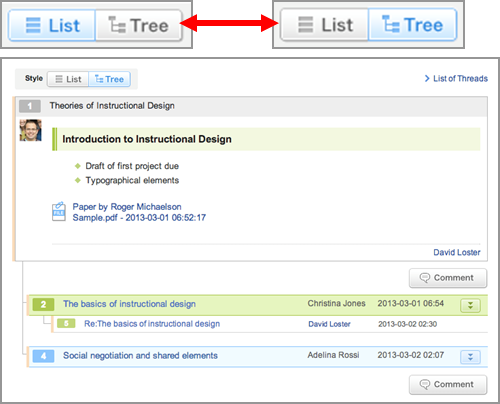
There are two ways to display comments. Click the button in the top right corner to switch the setting.
List
Comments are displayed top-down from the latest post.
Tree
Comments are displayed top-down by the oldest post. Response for each comment is displayed associating with the original comment.
Mutual evaluation by the "Like" button
What is the “Like” button?
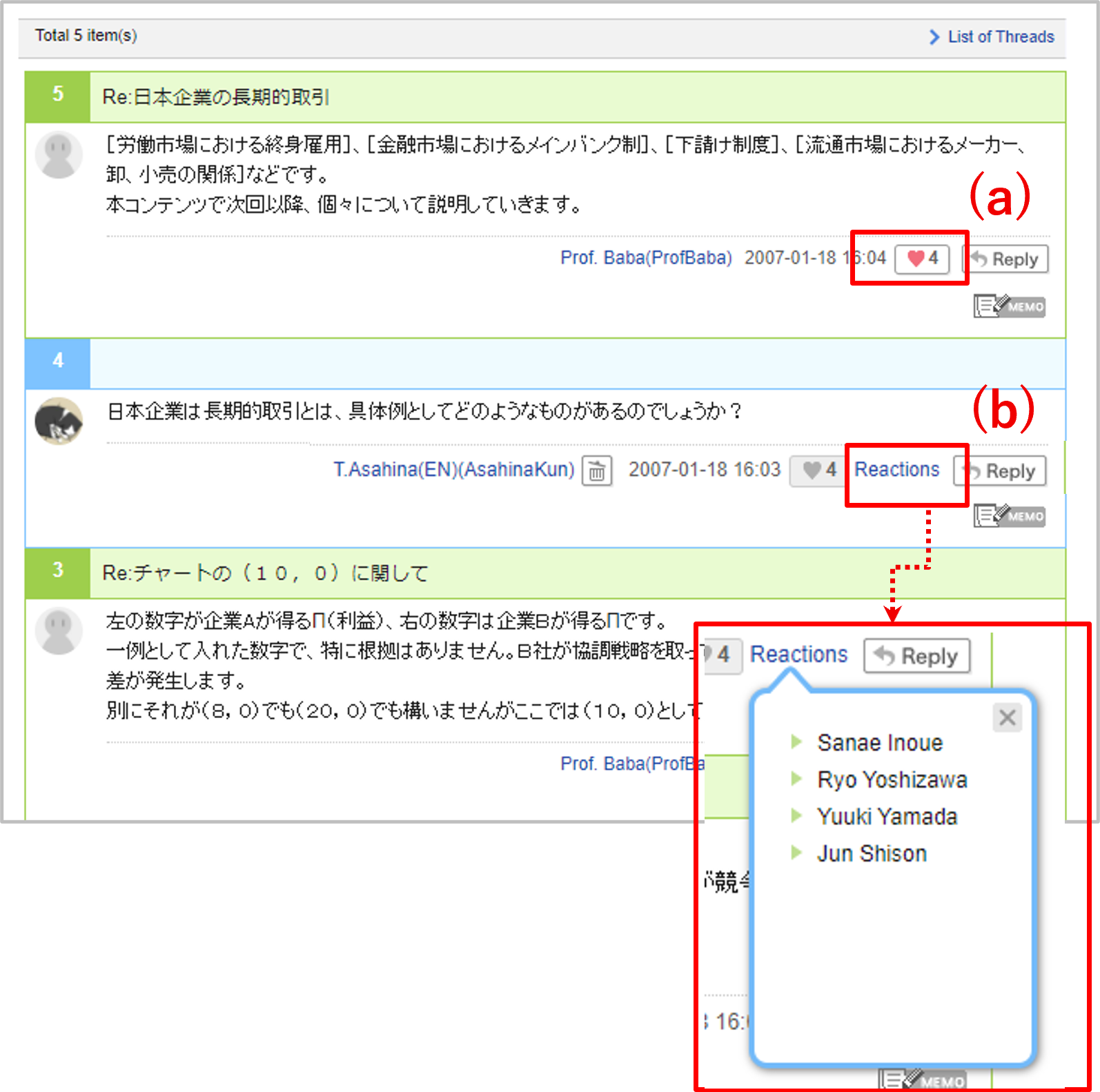
By clicking the "Like" button (a), you can "Like" comments on the forum. You can also view the list of users who have liked your comment by clicking the "Reactions" button (b).
You can cancel the "Like" you have given by clicking the button again.
You cannot "Like" your own comments.
Resources
Resources is a space where instructors post resources such as teaching materials and presentations used in a course.
View resources
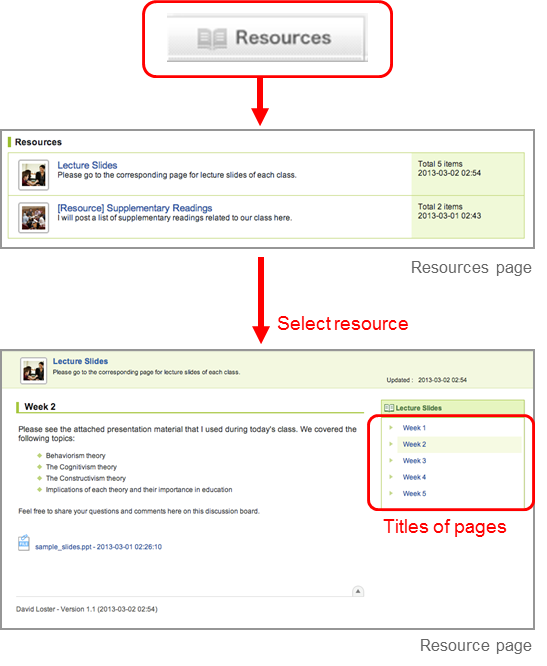
Click Resources and a list of resources will be displayed.
Click the title of a resource and its content will be displayed.
Titles of pages in the resource you selected are shown on the right. Click the title of a page and check the other pages in the resource.
An orange line appears to the left of the first resource frame you view.
The orange line will remain faded for the first hour after it is displayed. After the hour is up, the orange line will disappear completely.
The color of the triangle icon of the page title displayed in the list on the right side of the screen will be as follows. ・Pages that have not been read and have been displayed for less than an hour: Orange ・Pages that have been open for an hour since they were first displayed: Green
Portfolio
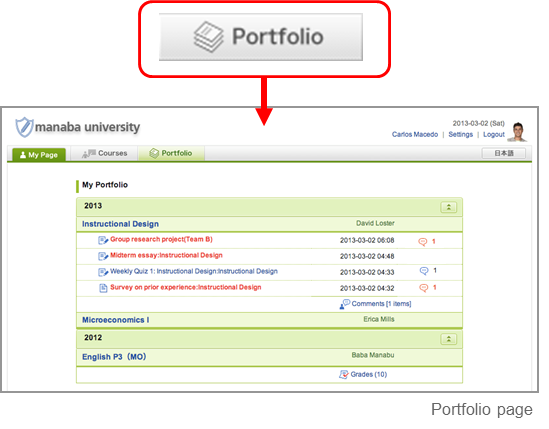
You have a portfolio space to accumulate your submitted work and comments for each course.
View your portfolio
Click Portfolio and all your submissions and comments will display.
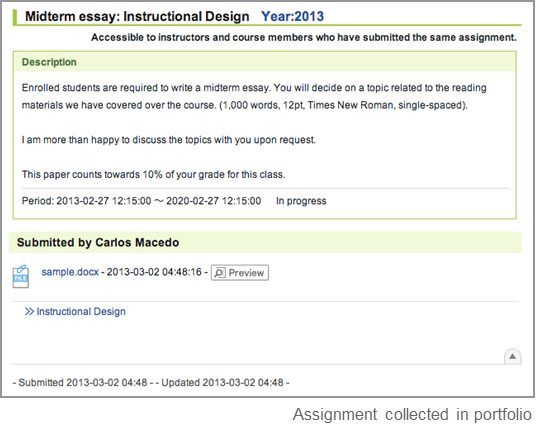
Not all assignments are collected in the portfolio; only assignments which the instructor set to store in your portfolio will be stored
Your portfolio is only accessible to you and the instructor.
Materials stored in the portfolio
Tests
Surveys
Assignments
Projects
Grades
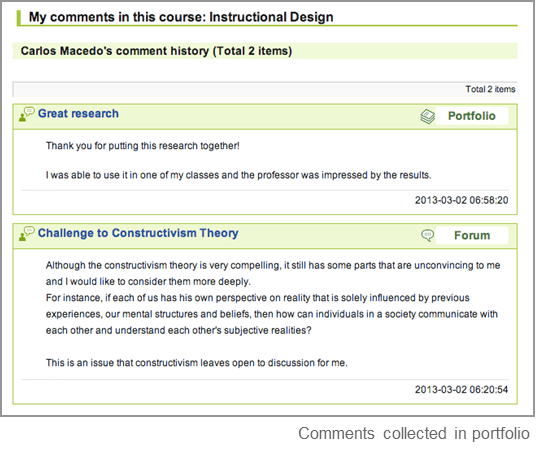
Comments
If a comment is added, the icon and the number of comments will be displayed. ※ If there are unread comments, the icon and the number of comments will be red.
Use on your smartphone
You may use manaba either on a smartphone.
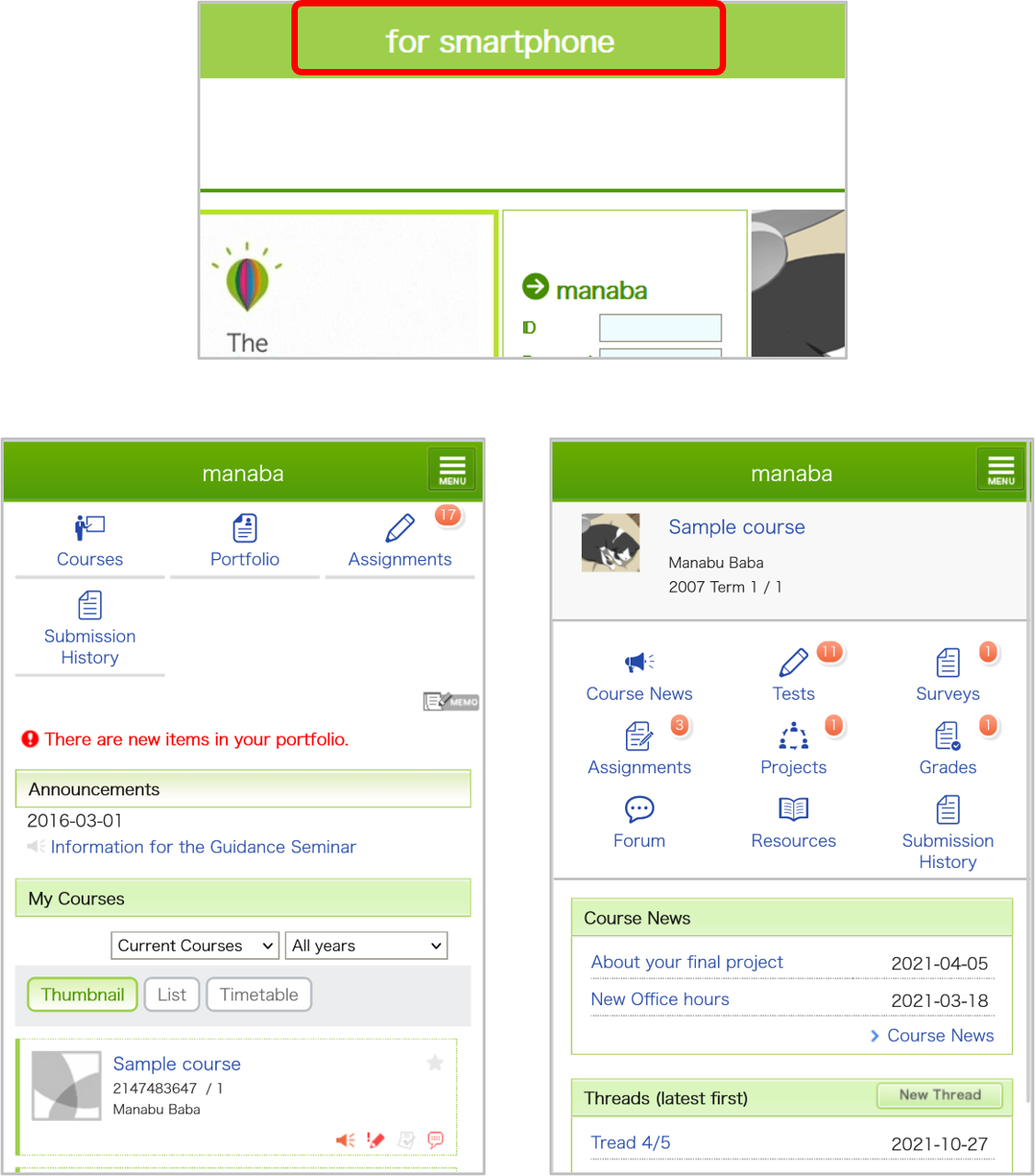
Use New smartphone-optimized screens
When you access the site page with your smartphone, the link for the smartphone-optimized screens are displayed at the top and you can tap to change.
* To return to the desktop-optimized screens, please access the link at the bottom of the screen
The smartphone-optimized screens mainly can be used on the student's functions.
Use old smartphone-optimized screens
Old smartphone-optimized screens is scheduled to be discontinued. To access it, click on the link on My Page in the desktop-optimized screens.
Old smartphone-optimized screens mainly can be used on the student's functions. The following operations are not supported on Old smartphone-optimized screens, so please perform them on the desktop-optimized screens.
Frequently used courses (marked with ★) function at the top of the screen.






 and the number of comments will be displayed.